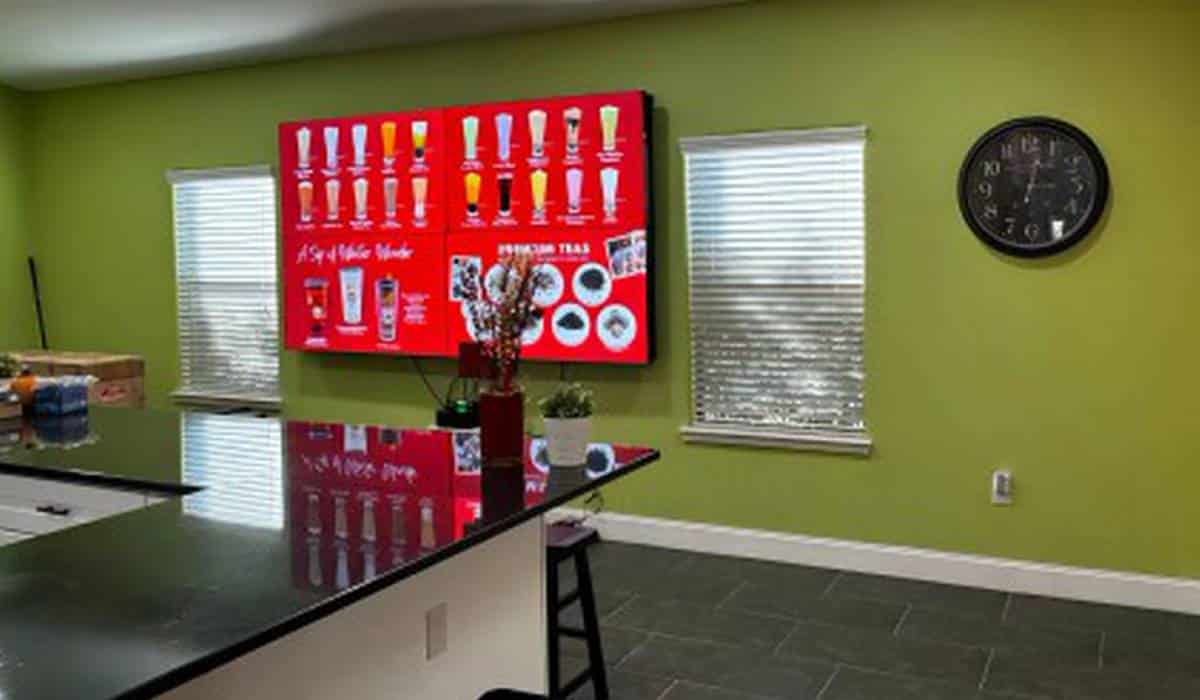
At 11:15 a.m., 10 minutes before the midday rush, the screens above a quick-service counter are bright, sharp, and wrong. One display still rotates a breakfast biscuit combo that the kitchen stopped cooking at 10:30. The adjacent board lists a chicken sandwich at last month’s price, while a self-order kiosk near the entrance lets guests add a seasonal shake whose syrup ran out during prep. Nobody notices until early lunch guests reach the register, point upward, and ask why the receipt total does not match.
Give every screen one operational job
Most day-to-day screen failures begin long before a file is uploaded, when a single display is asked to perform several competing jobs at once. In quick-service restaurants, customer-facing screens fall into four distinct operational roles: overhead menu boards, promotional displays, self-ordering kiosks, and order-pickup status screens.
Each role supports a different moment in the guest journey. A menu board exists so guests can compare categories, portion sizes, and prices before reaching the cashier. A promotional screen highlights a limited-time offer or combo upgrade where waiting guests have seconds to glance. A self-ordering kiosk guides a customer through item selection, modifiers, and payment routing, while a pickup board directs waiting guests toward the collection counter without crowding the register. When one screen alternates between core prices, full-screen food animations, and pickup numbers, guests wait through irrelevant slides just to find basic ordering details.
Test the screen from the customer’s position
A layout that looks readable on a back-office laptop often breaks down on the restaurant floor. Before service starts, a manager or shift lead should walk the customer path and inspect every screen from actual waiting positions—the entrance threshold, the rear of the queue, the ordering counter, and the collection area.
That walk-through checks five practical details: whether the smallest price and modifier text can be read from the end of the line; whether prices sit clearly beside the corresponding items; whether midday sunlight through glass doors creates glare across the panel; whether hanging signs, counter fixtures, or waiting guests block part of the display; and whether page transitions switch too quickly for an unfamiliar guest to compare two meals without losing track.
Set ownership and update deadlines
Screen accuracy depends on clear ownership across shifts. Every store needs a defined rule for who approves base price changes, who marks items sold out during service, and who verifies daypart transitions between breakfast, lunch, and dinner. Each shift should have one named screen owner on duty and one trained backup who knows where current files and schedules live.
Update deadlines matter just as much as permissions. Scheduled price adjustments and promotional launches should be completed and verified on the physical screens at least thirty minutes before the relevant service period begins—never during a queue build-up.
Many restaurants still run content software and point-of-sale terminals that do not synchronize automatically. Even when an integration exists, unmapped modifiers or offline caches can leave two prices in view. To prevent dual pricing, the pre-service routine should treat the point-of-sale price sheet as the single source of truth, comparing active register prices and kitchen stock against overhead boards and kiosks item by item.
Prepare for failure before service begins
Network drops, media-player freezes, and blank panels rarely happen at a quiet hour. Store teams need a bounded response routine that does not pull the manager into thirty minutes of cabinet troubleshooting during lunch.
First, staff should separate network loss from device failure. Displays running cached local playlists often keep playing when internet service drops, whereas live web pages and order-status feeds may freeze or turn blank. Shift leads should know how to run one controlled player restart or switch the unit to a preloaded default static menu stored on internal memory or a backup drive.
If a screen remains black or shows outdated pricing after one restart, staff should power it down immediately and place current printed menus at the counter and queue entrance until technical support resolves the fault.
A short pre-service checklist
A reliable opening check takes under five minutes when the shift lead follows six steps before unlocking the doors:
- 1. Screen power: Confirm every menu board, promotional display, kiosk, and pickup screen is on and playing without error messages.
- 2. Service period: Verify that the active layout and scheduled switch match the upcoming daypart and store clock.
- 3. Price consistency: Check displayed item prices against the active point-of-sale register sheet.
- 4. Sold-out status: Remove unavailable items across boards, kiosks, and registers.
- 5. Queue readability: Inspect glare, sightlines, and text legibility from the waiting line.
- 6. Fallback access: Confirm updated printed menus are ready behind the counter.
Reliable restaurant screens are rarely the ones packed with the most motion graphics, split-screen zones, or promotional loops. In daily quick-service operations, reliability comes from operational discipline: giving every display a single clear job, verifying accuracy against the register before the rush, assigning a shift owner for updates, and keeping a tested fallback ready when hardware or connectivity falters.
Cole Huang works in brand marketing at MWEdisplay, where he documents commercial display deployment workflows, digital menu board operations, and field troubleshooting checklists for restaurant and retail teams. He works with engineering and support staff to turn recurring store-level screen issues into practical pre-opening routines. MWEdisplay is the commercial display brand of Marvel Tech Group Co., Ltd., founded in Shenzhen in 2010 with team industry experience dating to 2008.